Showing posts with label how to. Show all posts

Simple Way To Get High PR Free Backlink

Are you looking for any simple way to get high PR backlinks for free of cost? Don't panic... In this post I'll share best way to get free and high PR backlinks for your blog.

Importance of Backlinks, let me correct it, importance of high PR backlinks are crucial SEO factor. Do you know how a blog/website rank on search engine? Lets take a example of a school boy who got new admission. Obviously he will not be known by many of teachers and other faculty. But think about a football team captain, everyone know about that guy. Similarly if a blog/website came out on web, it will not be discovered by search engines. I'll be explaining how search engines discover a blog/site on web.

Now a days when a person need any piece of information he/she first like to get information through search engines because that particular person might not be familiar with few good websites/blogs related to his/her query. 

Simple Way To Get High PR Free Backlink


Millions are people searching daily for different queries and its search engine's responsibility to provide best results. In past we may had bad experience with search engine results, I mean 3 years before for most of my queries I don't get relevant result. But now a days search engines are very strict for ranking a website/blog in their search result. 

Days were gone when webmaster rank their blog by keyword stuffing. Now in 2014 there are more than 200 factors which affect your blog/website ranking in search engines and one of them is backlinks.

Backlinks are two types. No follow and Do follow backlink. I always got confused about no-follow and do-follow backlinks during initial days but after a little research I got to know about them. Let me explain no-follow and do-follow backlinks.

No follow backlinks are such type of link which doesn't pass link juice and even search engines do not follow no-follow backlinks. A webmaster always hunt for do-follow backlinks because they get link juice. Many webmasters are looking for high PR do-follow backlinks in SEO marketplace like seoclerk.com. But that doesn't mean that no-follow backlinks are worthless. If we only build do-follow backlinks then Google update surely hit us. Google will treat it as spamming. So we need to maintain a ratio between no-follow and do-follow backlinks. 

Backlinks are nothing but votes for your blog/website. Search engines especially Google seeks for High PR backlinks and there are many ways to get backlinks. A common question about backlink building is "how much backlinks should I create to rank my blog higher in search result". My answer is simply straight "Quantity doesn't matters at all. Google bots doesn't seek for how much links pointing to your blog. Google loves quality backlinks, not quantity. 100 low quality backlinks are equal to 1 High PR quality backlink. But getting high PR backlink from authority sites is not easy.

How to get high PR quality backlinks from a authority site


You should approach them via contact form.

Get details about site with the help of whois.net.

Write a e-mail to webmaster and ask them for a backlink.

Do guest posting on High PR sites and drop a link in your article. 

Note-- Most of webmaster sell backlinks on their High PR sites. Although it is against Google rules but you may buy few High PR links. You can also find different gigs related to backlinks on seoclerk.com. Don't buy a backlink from a site which looks spammy.

Drop your e-mail id if you need list of High PR sites for backlinks. I'll also update this post with list of high PR sites for getting backlinks. Do lets know your thought about getting backlinks in comment section. 

.

Read More

Get 25% Off On Hostgator Web Hosting

Hey readers!

If you are planning to get a web hosting then grab Hostgator web hosting because they are one of the best web hosting company.

We are providing Coupon code that will make 25% off on Hostgator web hosting.

Follow below steps to get 25% off on Hostgator hosting:-


  1. Visit Hostgator.com
  2. Choose your hostgator hosting plans.
  3. During payment use onlinemoneystreet as 25% discount coupon code.
  4. Done.
Now start building your online world.

Do you know any best discount coupon code for hostgator? Do let us know in comment section.
Read More

Read Kindle eBooks Before They Are Published

Amazon’s new Kindle First service lets you read ebooks a month before they become available to the public. Every month, you can choose one of four ebooks selected by editors from Amazon Publishing. Each title is free for Amazon Prime members and 99p for non-members. Sign up to the monthly email to find out when the ebooks become available.


Get it here.
Read More

Simple Way To Edit And Convert Your eBook To Another Format

Hey guys! Now you can edit your ebooks with this excellent open source program, which supports most major ebook formats including EPUB and MOBI. You can convert from one format to another (output formats include Amazon’s Kindle format AZW3) and edit the text of your ebooks.


eBOOK MANAGER
What you need: Windows XP. Vista. 7 or 8 


This new version adds support for third-party extensions. Calibre also has an online service that lets you access your hook collection on any web-connected computer and subscribe to online newspapers and magazines. Click ‘Download calibre’ to download the MSI installer tile, and click Advanced during setup to choose which shortcuts (which Calibre calls ‘subfeatures’) to include. 


Read More

Simple Way To Read Unlimited eBooks On Your Kindle

Amazon’s Kindle Unlimited service has arrived in the UK, two months after launching in the US. It lets you read as many ebooks as you like for a monthly fee of £7.99.


The service does for books what Spotify did for music and Netflix for films, providing an ‘all you can read’ subscription service. You can choose from more than 650,000 books and also listen to up to 2,000 audiobooks through Amazon’s Audible service. As well as being available on Kindles, you can use Amazon’s Kindle apps for iOS, Android, Windows Phone, BlackBerry, Windows 8, PCs and Macs (links for these can be found here).

To give it a go, start the free 30-day trial, which offers the full service. Any book that Is eligible has the Kindle Unlimited logo displayed on It. Just select it and click “Read for £0.00”.

Be aware that Amazon will automatically take £7.99 from your credit or debit card at the end of the trial if you don’t cancel, so make a note in your calendar if you don’t want to commit to the monthly fee. 


Read More

Should You Pay to optimize Your PC?

Most of the free suites on offer, including those we’ve recommended earlier, are cut-down editions of paid-for software. If you want additional features, you can easily upgrade to the full version, usually from within the software itself (chances are, you’ll be nagged to do so!).

Advanced SystemCare, for example, is available in paid-for Pro and Ultimate editions, and upgrading gives you lots of useful extra features, including enhanced malware protection, real-time optimization, an internet booster and smart tools for daily maintenance. In a lot of cases, however, the additional tools in the paid-for edition will be non-essential extras that might be handy to have, but which you probably won’t need or use very often.


While there are plenty of great free and fully functional programs to choose from, be careful to avoid ‘crippled’ suites that scan your system for free, present you with a list of problems, and then charge you to do anything about the results. A typical example of this kind of product is PC Pitstop’s PC Matic. You should never trust this kind of program, because there’s no way of knowing how good (or otherwise) it will be at cleaning up your PC until after you’ve handed over your cash.


Snake-oil software


Some of the cleaning tools you can download (in both paid-for and free suites) could be described as ‘snake oil’ because they make grand claims for the improvements they perform, but don’t really fix problems or make your PC run any better. Many experts put Registry cleaners and Registry defragmenters in this category. Cleaning the Registry can potentially help if it’s done as part of a full maintenance routine on a PC that hasn't had any care or attention for a long time, but it does very little on its own, and in some cases can cause problems.

Accidentally removing a single important Registry entry is far more damaging than having even hundreds of incorrect and outdated entries in the Registry, which probably won’t noticeably slow down your PC or cause problems. There’s nothing wrong with using this type of tool on the odd occasion, but it’s certainly not a magic bullet to fix all your system woes.

Similarly, defragging your hard drive is unlikely to deliver massive speed boosts. Modern drives are so fast that the difference in seeking data on an optimized or un-optimized drive will be minimal. In fact, the process can lessen the lifespan of a regular HDD if it’s over used, and should never be used at all on an SSD. You should only defrag a drive once a month, at most, using a trusted tool such as Defraggler.
Read More

Trick To Create Account On Ello | Get Invitation Code For Ello

Ello is advertisement free Social Media which is made by advertisers who put forth their hands to start advertisement free network named as Ello by the few Of "Advertisers". In short time Ello is getting popularity and also called as "Killer of Facebook". Even though it’s in beta mode there are huge Thoughts and idea which has put forth by the developers. Every user data is recorded to provide the better features and every link is carefully tracked.

Advertisers are providing Ello as Advertisement free social network even the advertisers decided to contact and join reach content connected users in Ello so that they can get profit throw that this way user can be himself Advertisers and Publisher of Himself As a first day in join this new network Ello. It is hard to Join Ello, but every user are in Ello are allowed to Send Invitations to join 5 of their friends and they can sign up there and their accounts will be quick and active on the mark .But Even though Ello Allowed to enter their email to get invitations there is long queue for new members. But even though Ello made a link to invite lot of members there you can directly request to sign up without waiting for invitation but many of them disappointed for making users wait for invitations.


Watch the below video about how to create account on Ello.


Facebook user’s better stay on Facebook until beta comes. You can easily signup and Ello to try New Environment you can have chat in Facebook with your friends in meanwhile you can’t have much fun over there without chat with friends but still you are allowed to post it out there with info and about you can post your comments check out Ello users. 


If you compare Ello with Facebook, it is Facebok Killer. There are only options which are matching like user profile with info and the wall where you can use  your profile picture and you can can’t see preview of image while you are uploading, that’s not cool but looking good.

Every new user can feel Twitter in Ello Beta mode  we can’t even expect much more because Ello is still In Testing stage but Ello is loading much faster we hope site will be completed much soon as possible because there are lot of missing features as below: 


User blocking
Inappropriate content flagging
Audio integration (Soundcloud)
Private Accounts
Rich (multimedia) commenting
Mobile web refinements
Repost w/ author attribution
Notification Center
Online/offline user designation
Love + Love bookmarking stream
Emoji index
Video integration (Youtube, Vimeo, Instagram & Vine)
@@ Private Messaging

Auto-push posts to other networks iOS & Android mobile apps. Soon as possible lot of people in out there need not wait, you can Google it or YouTube it for keys that you need to join Ello.

Ello collects information related to your visit to the site, This information helps ello to understand how far people are using Ello, so that they can make Ello better and also The information that Ello collects includes your location, languages ,referring web site,time spent visiting Ello too. After a research and internal debate, Eloo decided to use a special anonym zed version of Google Analytics to collect visitor data. If that is something you are uncomfortable with output.

Ello says “If you choose to use a Chrome web browser, an Android Smartphone, or if you have recently used services like Google Search or YouTube, your web browser or device may be sending data back to Google that Ello can't control.”
Read More

Simple Way Open Links And Scroll Pages Without Clicking

If you want to give your mouse a rest as you browse the web, you can install an add-on that lets you scroll and open links on web pages without clicking. Our favourite tool for the job is the Chrome extension Click-free Browsing, which adds a set of arrow icons to the right-hand side of your browser. When you want to scroll up or down, either incrementally or to the top or the bottom of the page, just hover your mouse over one of the up or down icons.


You can also move back or forward a page using the left or right arrows. Similarly, to open links on pages, simply hover your mouse over them then hover over the icon that appears. Click-free Browsing works perfectly and you can customize it to change the color of its icons, prevent them from appearing at all on certain sites and delay the time it takes the add-on to perform actions.


There isn’t a direct equivalent of Click- free Browsing for Firefox, but Mouseless Browsing is worth a look for its quirky approach to web navigation. It assigns a unique ID number to every link, button and form element on a page. To open a link or select an element, just hold down Ctrl and type its number. Alternatively, to open It in a new tab, hold down Alt instead. Mouseless Browsing feels slightly cumbersome at first, but you soon get used to it and feel the relief of being able to bypass all that clicking. 
Read More

Chrome Extension To Find Items And Bargains On eBay

If you haven’t visited eBay for a while, the Chrome extension Fast Search for eBay could lure you back, by providing a speedier, more flexible alternative to the site’s built-in search facility. Click the tool bar button to launch the add-on, then enter a search term and specify a category to look in. You can sort results by price, most or fewest bids, new listings and ending soon; filter them by seller location and free delivery; and click View or Watch to open an item’s page on eBay or save it to look at later. 


Download Chrome Extension For Fast Search On eBay


There’s also a Deals section that highlights the latest discounts on the site. You’ll need to go into Settings to switch to eBay UK, and the popular list only covers the US store, but otherwise the extension offers a marvellous way to find bargains quickly. 
Read More

6 Advanced Gmail Features That Made Me Awesome

Why stick with one Gmail address when you can have as many as you want without opening another account? I'll explain how and why to create extra email addresses


Gmail always ignores full stops in email addresses, so if you own the account yourname@gmail.com, all messages send to your.name@gmail.com will also reach you. And if you insert a plus sign and a word before the @ part of the address, for example yourname+work@gmail.com, Gmail will ignore these additions, too. Such tricks mean you can effectively create an infinite number of Gmail addresses for one Inbox, and apply different actions to each one. In this feature, we reveal the best uses for unlimited addresses.


Stop spam when you sign up with sites


Lots of websites require you to register if you want full access to their features and content, but handing over your email address can result in you being deluged with unwanted junk mail from third parties. You can prevent this from happening by adding a full stop or a plus sign and word to your Gmail address when you sign up, for example robirvster+nospam@gmaiI.com. You can then create a filter that automatically deletes all messages sent to that variant of your address.


To do this, click the cog icon and select Settings, Filters, ‘Create a new filter’. In the To field, enter your amended email address, then click ‘Create filter with this search’. From the list of actions to apply when a message arrives matching the search, choose either ‘Skip the In box (Archive it)’ or ‘Delete it’, and click ‘Create filter’.

Alternatively, you can choose Promotions from the ‘Categories as’ menu, so that emails sent to the address only appear on the Promotions tab of your In box, rather than the Primary one.


Highlight messages from important senders


As well as having a dedicated Gmail address for junk mail, you can set up one for close friends and family to prevent their messages from being lost in your Inbox. Add a full stop to your existing address so that it resembles a standard one, for example rob.irvster@gmail.com, then create a filter for the address as described in the previous tip. You can select options including ‘Star it’ and ‘Always mark as important’, and apply a label to emails sent to the address to ensure you never miss messages from the people who matter most.


Another advantage to applying a label is that you can set up the Gmail mobile app to alert you when emails from friends and family arrive. Select the label from the app’s left-hand menu, then tap the three-dot icon in the top-right corner and choose ‘Label settings’. Ensure the ‘Label notifications’ option is selected, and then choose a sound for the notifications and whether you want your phone or tablet to vibrate when emails with the label arrive.


Discover how people got your details


In the same way that you can avoid spam by modifying your Gmail address when you register with sites, you can also pinpoint the source of potentially unwanted messages. For example, if you sign up with business network Linked In, you can add ‘+linkedin’ to your email address to make it something like
robirvster+linkedin@gmail.com. Once you’ve received the confirmation email and activated your account, you can create a filter that applies a ‘linkedin’ label to all emails sent to that address. In this way, you’ll be able to see when people have found your contact details through Linkedin (or any other site on which you try this trick).


Stop mixing business (emails) with pleasure


Although Gmail’s tabbed In box sorts incoming messages into categories such as Social, Promotions and Updates, it doesn’t offer an easy way to separate your work-related emails from those to do with your personal life. To solve this problem, you can create a variant of your Gmail address for your job while keeping your proper address for home use. This could be as simple as adding ‘+1’ before the’@’ in the middle of the address, such as robirvster+1@gmail.com. Set up a filter with an appropriate label for your work emails and you’ll no longer need to sift through personal correspondence to find messages from your boss, and vice versa.


If you want to send, as well as receive, emails from your work address, go into Gmail’s Settings and click the ‘Accounts and Import’ tab. In the ‘Send mail as’ section, click ‘Add another email address that you own’ 


and enter your new business address and - optionally - a variation on your name. Click ‘Next step’ to confirm and select ‘Reply from the same address to which the message was sent’. Finally, click the ‘edit info’ link next to the address and choose ‘Treat as an alias’.

Now, when you compose a work related message in Gmail, you’ll be able to select the new address from the drop-down From menu. This will send emails from that address and ensure replies are kept separate from your personal mail.


Set up an instant to-do list 


To make sure you never forget anything important again, you can assign a special email address to things you need to do, such as robirvster+todo@gmail.com. Create a filter with a ‘To do’ label so that messages sent to the address are automatically grouped together and easily accessible from the left-hand side of your Inbox or by bookmarking mail.google.com/mail/ u/O/#label/To+do. It’s a useful way to remind you to ‘Buy some milk on the way home’ or ‘Remember to finish tax return’. You can even forward mail from other accounts to add tasks to your to-do list, and include photos.


Create a trigger for an IFTTT recipe


The amazing IFTTT, which automates everyday tasks by connecting online services, provides plenty of scope for making the most of your infinite GmaiI addresses. By sending an email from a customized ‘alias’ address (see tip on the left) to your standard one, you can use it as the trigger in a ‘recipe’ (a combination of a trigger and an action). If you visit IFTTT’sGmail channel, you’ll find more than a thousand recipes for the webmail service, including: save email attachments to Google Drive (or Dropbox); make your phone ring if you lose it; and keep track of your orders from Amazon. However, to use your special Gmail address, you’ll need to create your own recipe.


To do this, click the ‘Create a Recipe’ button on the IFTTT homepage, then click the blue, underlined ‘this’ on the following page and choose Gmail from the list of channels. In the ‘Choose a Trigger’ section, select ‘New email in Inbox from’, enter the Gmail alias you want to use and click Create Trigger. Now click the blue, underlined ‘that’ and choose the service to connect, for example Facebook, Flickr or Google Drive. Choose an action from the options provided, enter any other required details and click Create Action. Finally, click Create Recipe to confirm the details. You can repeat these steps for as many Gmail aliases and recipes as you want to create.


Read More

Back Up Your Phone To The Cloud

Instead of manually backing up the files on your phone to a cloud storage service, you can use G CloudBackup to upload all your Important data In one go. This free Android app backs up contacts, call logs, messages, music, videos, family photos and other personal data to Amazon’s S3 cloud storage. 


You can choose what to back up, set a schedule, and tell the app to only back up content when on Wi-Fi. You get just 1GB for free, but can earn up to 10GB by tweeting about it, liking it on Facebook and so on. 
Read More

Ooloo : Voice Assistant Tool

Do you find that voice-assistant tools such as Siri and “OK Google” often give you inaccurate answers when you ask them a question? Perhaps they misinterpret you
altogether? With Ooloo, you can avoid this problem, because your questions are answered by real human beings yes, really! Remarkably, the service is completely free and its team is available at all hours of the day and night.

Mm requirements: Android 4.0, iOS 7 
Size: 7.1MB 


 It took us seconds to set up the app and ask “What is the capital of the Netherlands?”, and we were stunned by the speed at which not one but two members of Ooloo staff gave us the correct answer: “Amsterdam”. Next, we asked I “What’s the best restaurant near here?” and because Ooloo shares your location with its team, we were given a nearby recommendation only moments later. While some users may have privacy concerns about the app requiring such permissions, we like the personal touch that Ooloo offers - you can see the names of the staff who answer your questions, and you can also provide feedback by rating their answers as ‘Awesome’, ‘Good’, or ‘Meh’. We also found it refreshing that we were given only one, carefully considered answer to our restaurant enquiry, rather than being overwhelmed with too much choice.
Read More

Simple Way To Make Your Internet Faster

Firstly, it’s worth trying another browser, in case Chrome is the problem. You should also make sure you have the latest version of Flash Player installed. Sometimes, however, loss of performance over time is a result of a large build-up in the temporary file cache and/or because you have too many programs in your Startup menu.

The Microsoft Fixit at bit.ly/fixit352 may resolve some of the causes, but you can clear the temporary file cache by clicking Start, typing %temp% and pressing enter (you may have to do this through the Run box in XP). If there are a substantial number of files in there, then click on Organize. Select all, Organize. Delete and confirm you wish to delete the files. Then tick the box and click Skip in the next prompt. You should then empty the Recycle Bin and run Disk Defragmenter. as a fragmented hard drive can also cause performance problems. Also, make sure you’ve got at least 15 per cent of your hard drive free.


If, after this, you’re still having problems, you could also try booting your PC into Safe Mode with Networking to isolate your anti-virus program and installed graphics and audio drivers. If that gives an improvement, it’s likely to be your anti-virus program slowing things down, but it could also be a good idea to download the latest drivers from your computer manufacturer’s website, In particular the graphics card driver.


Read More

Find A Lost Phone or Tablet From Anywhere

Android Device Manager lets you locate your phone or tablet via another Android device or through the browser on your computer. Its Ring feature is very useful for tracking down your device when you know you've left it somewhere nearby, and if It’s been lost or stolen you can lock the handset remotely, leave a recovery message and contact number for when it’s found, or even wipe its contents entirely.


Open Google Settings from the Apps screen on your device and select Android Device Manager. By default, the ‘Remotely locate this device’ option should already be ticked. Tick ‘Allow remote lock and erase’, select Activate, and repeat this step for any other Android devices you own.

Next, download the Android Device Manager app (bit.ly/android352) from the Google Play Store. Make sure you have turned location services on and when you open the app, click Accept when asked to let Google use your location data to locate your devices. Enter your Google password and select Sign In.

Android Device Manager will show the last-known location of your device(s). The size of the blue circle surrounding the pin Indicates how accurate this is. Tap the arrow to see another device or tap the menu button and select ‘Rename device’ to give your device a different name.

Should your phone or tablet be lost or stolen. you can open the app on your second device or visit android.com/devicemanager from your browser. You can also use Android Device Manager on a friend’s device by tapping Device Manager and selecting Guest to sign into your account.

Once you've signed in. tap Ring to make your device ring for five minutes at full volume. If you still can’t find it, select Lock to lock the handset with a new password. In this menu, you can also enter a recovery message and contact phone number in case someone finds your missing phone or tablet.

If you cannot recover your phone or tablet and are worried that someone may access its contents, tap Erase to remove all apps, media settings and data. You’ll need to tap Erase again to confirm this, but you should only do so as a last resort, and if you’re certain that you won’t get your device back.
Read More

Search Web With Your Voice

Although searching the web invariably involves more typing than clicking you can still give your fingers a rest by using Chrome’s new OK Google’ voice-search feature. First, you’ll need to go into Chrome’s Settings, click ‘Show advanced settings’ and, in the Privacy section, select the option ‘Enable ‘OK Google” to start a voice search’. 


Now, when you go to the Google homepage or open a new tab in Chrome, you’ll be able to trigger a voice search simply by saying “OK Google and speaking your search query. Unlike Google’s standard voice’ search function, OK Google doesn’t just look up the words you say, but responds directly to commands and questions, such as “Find me a recipe for scones” or “Who won the World Cup in 1982?”. If the feature doesn’t work, try installing the Google Voice Hotword Search extension (bit.ly/okgoogle352), which does the same thing. 
Read More

Send Email With Attachment Of 10GB

Most email services only let you send files that are between 10MB and 25MB in size. If you need to email a file that’s much larger than that, you can use the excellent online service WeTransfer. The free version of this lets you send links to files of up to 2GB in size, but if you upgrade to the paid Plus version for €10 (8) a month you can send up to 10GB, files stay available for longer, and you can password-protect them.


To use the service, simply add some files, enter the recipient’s email address and your own, and type a message. WeTransfer will then email the person with a link to the file. 
Read More

How To Search The Web Without Being Tracked

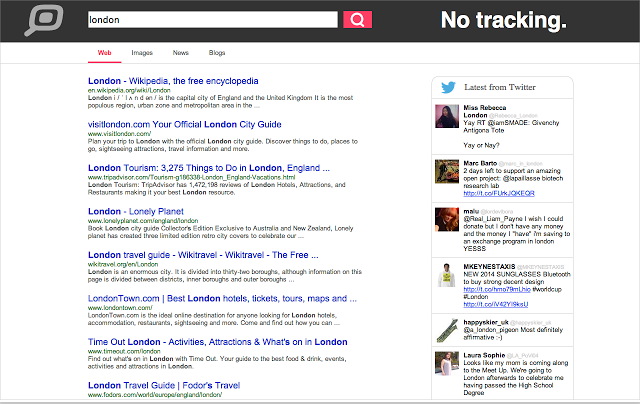
If youre worried that Google is watching everything you search for, you can switch to Motherpipe to protect your privacy. 


Just click the toolbar button and type a search query to view results on Motherpipe, without your details being tracked, stored or shared. Interestingly, the search engine scours Twitter as well as the wider web, which is useful when you’re looking for something topical, and lets you switch between standard, image and news searches.
Read More

How To Hide Programs In Windows

If a program can't be seen, it’s less likely to be used, so removing software from the Start menu or Start screen is a handy way of restricting what can be accessed on your PC. Each user has private and public Start menu items, and by moving items from the public or other users’ private menus to your own private menu will hide them so that only you can see them.

Open Explorer and go to:

C:\Programs\ProgramData\Microsoft\ Windows\Start Menu

Move items you want to hide to your own private Start menu at:

C:\Users\YourName\AppData\Roaming\Microsoft\Windows\Start Menu

You’ll need to show hidden files and folders, so in Windows 7 press Alt in Explorer and select Tools, Folder Options, View, ‘Show hidden files and folders’.


In Windows 8, this setting is on the View tab in the ribbon. Also move Desktop shortcuts from C:\Users\Public\Desktop to C:\Users\YourName\Desktop. 
Read More

File Converter: Docu Freezer

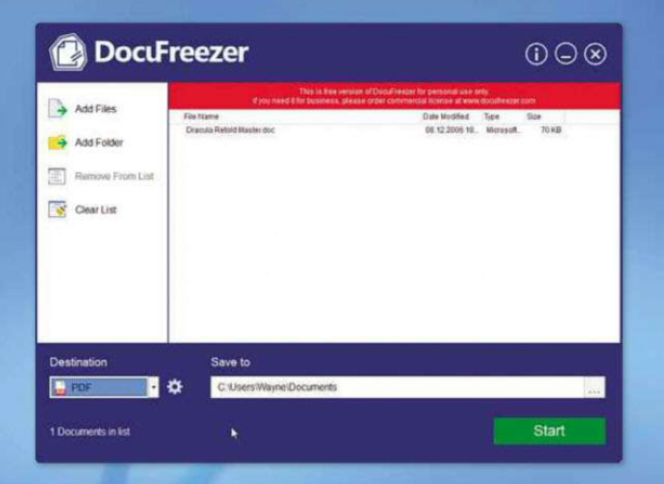
Sharing a document relies on the other person having the right program to open it, and there’s no guarantee it will look exactly as it does on your PC unless you present it as a PDF or image file. Docu Freezer solves this problem by converting any document into a range of formats including PDF, PNG, JPG and TIF.

Mm requirements: Windows XP/Vista/7/8+
File size: 7.9MB 


Just drag the document(s) to the program window (you can also drop folders containing documents), pick the format you want to convert to and click Start. Note that Docu Freezer requires you to have Office 2010 (or later) installed if you want to convert files that were created using Microsoft’s Office suite, such as Word documents. 
Read More

How To Search Apps For Android

Without search engines there would be no internet, because people simply wouldn't know where to go or what sites to visit, so it’s no surprise that search technology has invaded the world’s app stores too. All the big names are present in Google Play, although some interesting smaller apps promise a handful of unique features too.

We review six search apps below. As usual, all are free in the Google Play store, and all were tested on a phone and a tablet running Android 4.3 Jelly Bean.

Bing


The first thing to strike those using Microsoft’s Bing app will be the wallpaper images, which are carried across from the Bing website and greet users when they start the app. This makes using Bing a unique experience. Google has its doodles. Bing has its wallpapers. Tap the screen and four zones are indicated. Tapping these reveals trivia or whimsy about the image, and tapping a download button at the bottom right even lets you set the high-res image as your launcher wallpaper. The app works equally well on both tablet and phone too.

However, nice wallpaper doesn’t necessarily make a good search app, and to access the search function you need only tap in the search field that remains present at all times at the top of the screen. Instead of typing you can also tap the microphone icon to speak your search term, and recognition is reasonably quick and accurate about as accurate as any modern speech recognition, anyway.

Once a search term has been entered, results appear instantly in the main window and look much like the Bing website. The app includes its own browser engine so that any results you tap open instantly within the same app window. The browser is basic but simple: you can create bookmarks, for example, and a primitive browser tab system is implemented that isn’t particularly easy to use. Other useful functions offered include the ability to save a screenshot of the site to the photo gallery and to share the URL in question in the usual way using the Android Send system. What’s curiously lacking is any ability to open the site in your regular browser or, for that matter, any other browser.

Tapping the Bing menu button at the top left of the screen reveals a handful of other functions, including the ability to jump straight to a weather report for the local area (based on the fuzzy geolocation of your IP address and not, alas, your device’s GPS hardware). You can also jump straight to special sections of Bing, such as Images, Trends (popular searches), News. Maps and Gallery (previous wallpaper images).

Signing in with your Microsoft ID will let you sync bookmarks between devices and browsers. The tantalizing Bing Rewards system lets you earn points for each search you make, which can then be traded in for prizes, but unfortunately this is only open to US residents at the moment.

This is a nice app overall, but we’re not sure there’s enough here to convert even the most reticent Google user. The bolt- on gimmicks are all well and good, but none actually relate to search technology. It’s with search results, both in quality and presentation, that the innovation should be taking place.


DuckDuckGo


DuckDuckGo is rapidly gaining prominence as perhaps the only serious threat to Google’s virtual monopoly, and it’s doing so by inverting Google’s rules: whereas Google wants to gobble up every scrap of data you generate, DuckDuckGo promises never to track you and to entirely respect your privacy. It still shows adverts, but these are based simply on the search term you type and not your past browsing habits or Gmail messages, as with Google and indeed many other search outfits.

However, the DuckDuckGo app isn’t just a search app. Its full title is DuckDuckGo Search & Stories. This is an app with a schizoid personality. One half is a content aggregator, which is to say the app raids popular websites to grab the juiciest headlines and stories. These sites include Ars Technica, Reddit, Life Hacker, Digg, The Verge and others. There’s nothing that complicated going on the headlines are simply presented on the opening screen of the app, and tapping any of them takes you to the site to read the full thing (within the app itself, which includes a built-in browser). The link can be shared in the usual way, saved as a bookmark within the app or opened in another browser installed on the system. The app also includes a Readability mode that can make some web pages easier to digest by cutting out extraneous page elements such as navigation toolbars.

However, at its heart the app is a search tool, and typing a search term into the field at the top of the screen will show the results within the app itself. Tapping any of the results opens it for viewing in the app, although open the Settings menu and you can switch to always opening links in your favorite browser, such as Google Chrome or Mozilla Firefox. This makes 100% sense yet is not found in most of the other apps here, which prefer to keep you within their walled gardens.

Searches can be boosted by DuckDuckGo’s proprietary !bang syntax, by which you can limit searches to particular sites or interest areas by specifying a particular letter or word after an exclamation mark. Details can be found at duckduckgo.com/ bang.html.
Alas, a few things are missing compared to other apps reviewed here. There’s no voice search feature, for example, although this is perhaps of limited use in real life how many times have you heard anybody dictate a search to their phone or tablet rather than type it? Exactly.

This app provides a nice little taster of DuckDuckGo, and the content aggregation provides a good reason to keep it in the memory on your device. Recommended.


Yahoo Search


This is primarily a phone app. It’ll work on a tablet but only by pretending the device is a phone by forcing you to hold it in portrait orientation and making on-screen items like buttons and text very small. Therefore we focus on the phone experience here.
The first thing to strike us about the app is its simplicity. Once started, all you see is a search field at the top of the screen. There’s no wallpaper, as with Bing, and no news stories, as with DuckDuckGo. You can type your search or tap the microphone icon to dictate it, in which case speech recognition is identical to all other types of speech recognition on mobile devices: reasonably accurate and reasonably fast.

A list of search results appears in the app window, and tabs at the bottom let you look through web, image and video results. Tapping on any result opens it within the app itself, which has a primitive browser built in. Unfortunately, while you can share the URL in various ways, such as an email message or via DropBox, you can’t select to open the site, image or video in a different browser installed on the system. To escape viewing the site, you must tap the Done button or tap your device’s back button (if it has one), which will take you back to the results.

Tapping the menu icon at the top left lets you sign into Yahoo in order to log your search history for use elsewhere (although it’s not accessible within the app itself), but there appears to be no other benefit to signing in. The Settings menu also lets you switch instantly to any other Yahoo apps you have installed on your device.

Options within the actual Settings dialogue box include the ability to set Safe Search, so you don’t get any unpleasant entries polluting your search results, and the ability to
deactivate the aforementioned search history feature. You can also clear your search history.

While simplicity might be key to an app’s success, there just isn’t very much within this app to justify using it. With apps we look for innovation clever tricks that make using a particular service more intuitive or fun. There isn’t any of that here.

Perhaps the biggest negative factor is that Yahoo search results nowadays are provided by Microsoft Bing. Yahoo is no longer a search engine and hasn’t been since 2009. In other words, you might as well use the Bing app, which has more features and looks a whole lot better.


Izik


It’s hard to know where to start with this app. First there’s the app’s title, which in the grand tradition of edgy innovation leaves the user unsure how to pronounce it: is it izzik, as in indigo or eye-zik, as in Isaac? Then there’s the app’s tagline:

‘Take search for a joy ride.’ We’re guessing the term joy ride has a different meaning in the US, where this app originates and doesn’t imply scooting around a council estate in an XR3i.

Then there’s perhaps the most astonishing fact: this is an app designed for tablets. It works just fine on a phone, but in the world of Android, the idea of giving tablet first bite of the cherry is virtually unprecedented. This isn’t just talk either, and the app makes good use of gestures, as well as increased screen space. Search results appear under various category headings, including Looking For, Top Results and Images, although others might appear depending on the search term. Search for Abraham Lincoln, for example, and History and American History headings will appear too. Each category is shown as a horizontal strip above or below the others, and using the pinch-to-expand gesture on any result expands an excerpt from the site for quick viewing.

Tapping the site opens it for viewing in the main app window, and although the app’s listing within Google Play claims you can then share the page with others, we couldn’t find any such options. Nor was there an option to open the page in a different browser or even copy the URL, so you can do so manually. When searching for images, you can’t save the image to your photo collection. All you can do in lzik is view stuff, which is very limiting.

Upon running for the first time, the app installs an always visible blue SEARCH icon at the right of the screen. This sticks around even when you’re running other apps, and tapping it expands an Izik search bar. We’re not entirely sure this is a good idea, but it can be turned off within the app by opening the app menu by tapping the top left icon. Also on this menu you can see trending search terms, although in our tests these were all preceded by ‘non_us’ a remnant of some kind of filtering system we’re not supposed to see, perhaps, but another indication that not much testing has taken place outside the US.

lzik’s clever presentation of data under category headings works very well but only with well-rounded and somewhat hackneyed search queries. It’s a great app to use for homework assignments, for example, or finding out about Lady Gaga. However, it’s less useful if you’re trying to find out the valve timings on a 1992 Vauxhall Corsa. For that kind of thing, Google is still king.


Super Search


Out in the wilds of the Google Play store, it can sometimes feel like the Windows shareware scene circa 1995. Enthusiastic developers release apps to scratch an itch, and the apps aren’t always pretty but they work to a fashion. Super Search is a typical example. Coming out of the Simple Game Studios in Pakistan, the app’s intention is to provide instant access to most of the major search engines, as well as instant searches of popular sites like Linkedin and Wikipedia.

At the most basic usage, the user types a search term and then selects a site from the drop-down lists below in order to initiate a search. Once you do so, you’ll be bounced out to your favorite browser app to view the results, but nothing magical has occurred. What you see is what you’d get if you simply visited the site yourself and typed the term into the search field.

However, the app’s strength lies in Multiple Search Mode. Here you can type a search term and select from more than one search engine or website. You could search Bing at the same time as you search Sky News and Wikipedia, for example. The results are then shown within the app itself as a series of sites that are stacked on top of each other. Tapping any result in the pages you see then opens it in your usual browser.

It’s not hard to fault this app. It can’t be used in portrait orientation, for example, so you’ll have to hold your phone horizontally if you wish to use it. But perhaps the biggest crime is that the app is really a desktop app in terms of design, with a desktop way of thinking. Ticking off selections from big long lists of sites isn’t how things should be done on tablets and phones.

However, the core functionality is present and it works: if you want to be able to search several sites at once and look through the results very quickly indeed, then this app can’t really be beaten.


Disconnect Search


Online privacy is one of the biggest issues of our age, and search engines are some of the biggest privacy abusers. You pay for sites like Google not using money but by giving them unadulterated access to your personal data.

Disconnect Search aims to get around this data theft by using virtual private network technology to let you search anonymously. In other words, in addition to avoiding tracking cookies, the site hides your all-important IP address from the search engine too. This way, there’s no way of tracking you, although we have to assume that the Disconnect Search app itself is discreet and doesn’t track what you’re up to.

The app is actually very basic and little more than a front- end for the disconnect.me website once you’ve typed a search query, you’re bounced out to your favourite browser, where the result will be ready and waiting. We assume that the search query is sent via a secure connection to the disconnect. me website, where the results are fetched for you.

The site defaults to searching Google, but a drop-down box at the top lets you switch this to Bing, Yahoo, DuckDuckGo or Blekko. A search widget is also available as part of the app and can be revealed in the usual way by scrolling to the widget list in the app drawer. This cuts out the app entirely and lets you send search terms straight to disconnect.me.

There’s not much more we can say about Disconnect Search. It’d be nice to be able to select your search engine before tapping to search, and perhaps to set one as default too, but this is hardly a big problem when 99% of us still use Google. Viewing results within the app itself might make for speedier searching process too, but jumping out to your favourite browser hardly takes a long time.


Read More
Previous PostOlder Posts Home